
Samsung Kies download
The Software, click on the following Link. Save the EXE-file first, and then install it by double clicking.
Samsung Smartphone connect to the PC
The Installation is complete, you can start the "gravel". A new window will appear. On the top left is here, first of all, "Please connect a device". Now connect your Smartphone with the included USB cable to your PC. After a short set-up time, the device name should appear in the upper-left corner of the Kies Software.
The most important basic functions of Samsung Kies
On the left edge of the screen you see the name of your device the main functions. In our picture gallery you can check out a closer view.
- Under contacts, you can view all stored on the device contact information. You can also copy the backup to the PC. They have contact details in the special SPB Format, you can also transfer them Vice versa on your Smartphone and access them.
- The next few sub-points relate to media files. A click on "images" to open an Explorer view of all the stored on the Smartphone, photos. This you can copy by right-clicking on the PC. According to Samsung the "Drag&Drop" is supposed to work, so Drag the media files from the Windows Explorer, in the Kies window, and Vice versa. This doesn't work on all computers. Alternatively, you can also Insert files by right - clicking and "Copy" "back" and forth.
- Similar to Apple's "iTunes", you can "gravel" automatically each time you Connect your device, the media files sync. To do this, you must select the associated sub-menu, a folder for music on your PC, the Smartphone should be synchronized.
- You have performed all the scheduled actions, click on the top left next to the device name on the small "x". To disconnect the connection to the Smartphone and you can close both "gravel", as well as the device from the PC remove.
In a further practical tip we can provide you with the 3 best Alternatives to Samsung Kies before.
Latest Videos
You first open the Software "Kies".

You first open the Software "Kies".
After Connecting the USB cable, your device will be set up.

After Connecting the USB cable, your device will be set up.
After completing this procedure, the device name appears.
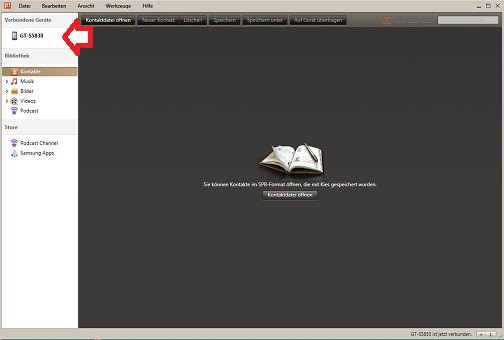
After completing this procedure, the device name appears.
Through each of the media views, you can move as you would in Windows Explorer.
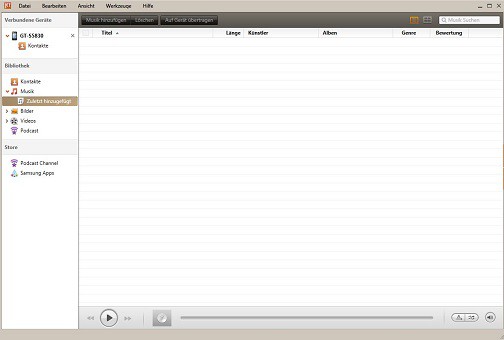
Through each of the media views, you can move as you would in Windows Explorer.
Right-clicking on such an image allows for more actions.
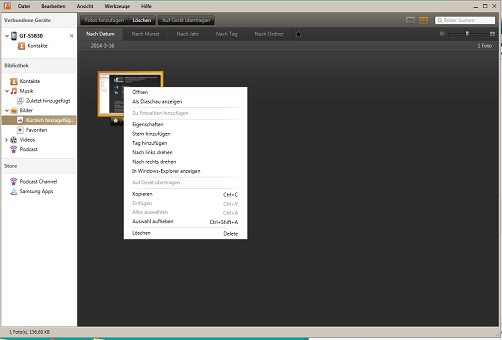
Right-clicking on such an image allows for more actions.
You need more help, with "pebble" a private Tutorial.
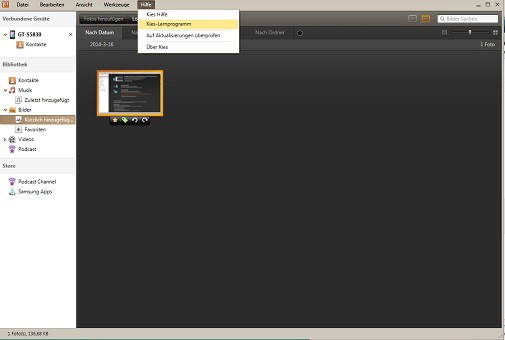
You need more help, with "pebble" a private Tutorial.





