So you activated the Android Easter Eggs
In every Version of Android starting from Android 2.3, the developers have hidden an Easter Egg. So that you can enable, follow the three simple steps:
- You go into the settings of your smartphone.
- Scroll to the bottom and tap the menu item "About phone".
- Tap several times quickly on your current "Android Version".

All of the Easter Eggs at a glance
Android Version 2.3 - Zombie-Easter-Egg
With the Android Version 2.3 aka "Gingerbread" was introduced in the first Easter Egg of this type. If you follow the top three steps, you will find a picture with a Zombie Gingerbread. This image is a "Zombie art by Jack Larson".

Settings -> Android Version
Android-Version 3.0 - the honey bee as an Easter Egg
Suitable to the name "Honeycomb", you will see Android 3.0 as a Easter Egg, a bee in the blue Neon Look. If you tap on this blue bee, then the words "Mzzzzzzz appears to be even". With a lot of imagination, this word resembles the sound of a flying bee.
Honeycomb, Version 3.0
Android Version 4.0 - the Easter Sandwich
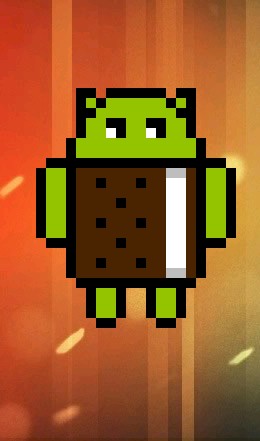
"Ice Cream Sandwich" is a Version 4.0 for Android. After you have followed the above three steps, you will enjoy the Android in the Sandwich-Look. New in this Version: A Animation!
- If you tap on the Android Ice Cream Sandwich, then you see the Android Sandwiches, as you fly through space.
Android Sandwich 4.0
Android Version 4.1 - 4.3 - Süßzeugs flick
In the three "Jelly Bean"versions, all of which have the same name, you will see the same name of red candy.
- Press Bean the red Jelly that fills the Screen with flying beans. You can wegschnippen with a Finger from the screen.

Jellybean Animation
Android 4.4 aka "KitKat" - the animated Easter-Egg
In the "Kit Kat" referred to Version of Google goes even a step further, as in the previous versions of Android.
- You opened the Easter Egg, you can tap your Display, thus appearing "K" is rotated. Alternatively, you can tap longer on your Display, so a red "KitKat"screen appears.
- Press again and hold the Easter Egg, you will see an Animation that you can interact with. The displayed tiles change, namely, in an arbitrary Position.

Jellybean Animation
Android 5.0 - a New operating system, new Easter Egg
Android L was introduced only recently, but it already contains an Easter Egg.
- Already in the run-up to the Android L-Preview test.
- If you tap repeatedly on your "Android Version" in the settings, there will be two rectangles. One of them is red, the other blue.
- These rectangles have to jump in seconds on the screen and change shape. This is strongly reminiscent of "Webdriver Torso". This YouTube channel had the Internet for a number of conspiracy theories, until a Blogger found out that he was launched by Google. It is a Test Account for the measurement of the Video - and sound-quality.
Right corner under "Android L"
Android 6.0 - Minigame as an Easter Egg
Android 6.0 alias Marshmallow, you can gamble even properly:
- Go to the settings of your smartphone and scroll down to the menu point "Info about the phone".
- Tap on it and search for the item "Android Version". By tapping repeatedly on the Version, open a clone of the popular Games Flappy-Bird-Android-Style.
- Again, you can end the game on the Back.

Marshmallow: Easter Egg find
Android 7.0: The Cat Game
With the Update to Android 7, there is also a new Easter Egg. This time it is a small Mini-Game with cute cats.
- As before, you need to activate the Easter Egg in the settings, by tapping an appearance on the Android Version.
- Press a longer time on the Android Logo, you can attract several cats with various treats and capture.
- In the following practice tip you can find detailed instructions for the cat game on Android 7. Unfortunately, the Easter Egg doesn't work on any Smartphone.

Cats hunt on Android 7
Android 8.0: Octopus in Android O
In comparison to the previous Easter Eggs, the Surprise is in Android 8 rather disappointing.
- Tap repeatedly on the version number that appears in a white circle in the two yellow circles. Tap several times on the white circle and hold it then.
- Then, a small black Octopus appears, probably based on Android O., Place the Finger on the head of the Octopus, you can drag it across the screen back and forth. Not more and not less.
Android 8: Schnarchiges Easter Egg
By the way: Also in the Google search hidden funny Easter Eggs that we give you in this practice tip think of.