
Samsung Galaxy S8: Always On Display off
A particularly simple Trick to increase the battery life of Samsung's new flagship smartphone, is to turn off the "Always On Display".
- As with the previous models, the Display of the S8 is always turned on, and displays various types of information.
- As you can see, for example, the clock from the lock screen without pressing a button.
- If you can live without this feature, turn it off via "settings" -> "lock screen and security" -> "Always On Display".
- Even faster you can turn the function on and off by swiping on the device from the top edge to the bottom. In the opening menu you will find a Button to disable the function.

Galaxy S8: battery life save
Battery life with screen time-out to improve
A similar Trick gives you a much longer runtime.
- In the settings of the Samsung Galaxy S8, you can select how quickly the Display should turn off after you have used it.
- You can make this setting under "settings" -> "screen" -> "screen Timeout". It's best to choose the shortest duration.
Screen resolution of the Galaxy S8 to adjust
Another way to save battery by using the display settings adjust the screen resolution of the device.
- The S8 has an ultra-high resolution WQHD+ Display. This provides for an extremely sharp image, and also demands its toll on the battery life of your device.
- Under "settings" -> "screen" -> "screen resolution" you can select between different resolutions.
- By default, this is set to the "HD+". On request, you can set this also down or up.
- If you are on the Display from top-to-bottom swipe, you will also find this Option a Button in the quick menu. With this, you just need one click to set the Display directly to the highest level, to enjoy such as Games or movies in the highest resolution.
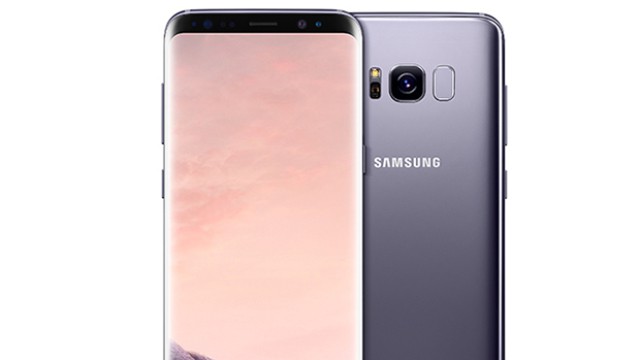
Battery life: So you save on the S8
Brightness of the S8 to customize and save battery
The Display of the Samsung Galaxy S8 is huge. So on the other Hand, the weaker the brightness of the screen, the battery life improved noticeably.
- Can you do this by swiping from top to bottom. At the bottom of the menu bar, you can adjust the brightness is.
- If you tap on the small arrow to the right at the bottom of the menu, you can issue the "Auto-brightness" and the brightness depending on the environment to adapt.

Battery saving: Samsung Galaxy S8
Galaxy S8: Apps can fall asleep
Particularly refined, the new Samsung Smartphone battery life save, by letting Apps easily "fall asleep".
- Press and hold the Icon of an App on the Homescreen no longer opens a small menu.
- Here, select "Sleep". If you enable this, run the App in the Background and costs you no valuable battery life.
- However, you should bear in mind that you get no notifications from the App. If you wait for an important WhatsApp message, you should leave the App so as not to "fall asleep".
Tip: As you are on your Galaxy S8 a Screenshot, we will show you in the next tip.





